
|
|
Networking Tools:
This section of the site provides tips and tricks on networking tools for your pc.
Tip 1:
System Monitor
An excellent utility in Windows 98/ME. Start the system monitor from the start menu. Click on add button and click on "Microsoft Network Server" from the category field. Chose the parameters that you want to track. You will be able to see the parameters/ shares that are slowing the system down and you cal close them from there only.
Tip 2
Speed up your Modem
Even if your modem is apparently working well, the baud rate of your COM Port
might not allow you to reach top-speed. To improve your port's speed:
1. Click Start > Settings > Control Panel > System.
2. Click the Device Manager tab, and click on the "+" sign next to Ports (COM &
LPT).
3. Select the port your modem uses, click Properties, then click the Port
Settings tab and set the Bits per second to 115200 bps. That way you won't have
a sort of filter on the Port.
Tip 3:
Use tracert to trace route.
A great utility included with Windows is a program called Trace Route. Open the
DOS window and type tracert <location name>. The location name can be any IP
address or Internet domain like tracert pitam.8m.net
The program will then trace the route from your Internet service provider to
that location, and show you every server along the way. This could be useful for
when you can't connect to a site - it will show you if some server is down along
the way
Snapshot:

Tracert
Tip 4
Redialing
Dial-Up Networking provides for automatic redial.
1. Open Dial-Up Networking.
2. Select your connection.
3. From the menu select Connections > Settings.
4. Enable Redial, select the number of times to redial and Click OK
Tip 5:
Speed-up your Connecting time
To Speed-up the time it takes for Dial Up Networking to establish a connection
with your ISP:
1. Open Dial-Up Networking.
2. Right-click your connection and choose Properties.
3. On the Server Types Tab, under Advanced Options, make sure that the check-box
for Log on to network is unchecked.
4. Under Allowed network protocols select only TCP/IP and uncheck NetBEUI & IPX/SPX
Tip 6:
Frequent disconnections
If you get disconnected frequently, try this extra modem setting:
1. Open Control Panel > Modems.
2. From Modems select Properties, select the Connection Tab and click the
Advanced button.
3. In the Extra settings dialogue box, enter ATS10=250.
Tip 7:
Ping
An excellent network utility in Windows is ping.
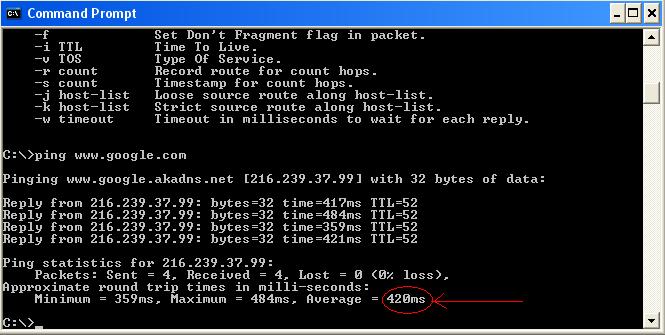
Ping
In command prompt, type ping <hostname> e.g. ping www.google.com . After the ping is complete, pay attention to the average time for approximate round trip (circled in red). This will tell you about the time taken to reach host and return. The less it is, the faster the connections. Use this to see the time for mirrors when you want to download something. Choose the mirror with the lowest round trip time. This will increase the download speed.
Tip 8
Netstat
Another excellent utility is netstat. Run it from command prompt by typing netstat at the prompt. It shows all open connections from in and out of the system.
Tip 9
Pathping
Pathping, in Windows 2000 gives the best out of ping and tracert. Forhelp on how to use pathping, type pathping/? in the command prompt.
Tip 10 : >> FOR ADVANCED USERS ONLY <<
Route
A very powerful tool in Windows 2000. Can view and even change the computer's routing table. PLEASE BE VERY VERY CAREFUL. A SLIGHTEST MISTAKE CAN MAKE A HAVOC WITH THE COMPUTER'S NETWORK COMMUNICATIONS. For more help, type route/? in the command prompt.
Tip 11:
Faster Sharing in Windows 2000/XP
Whenever any folder is viewed in a machine running 2000/XP from a macine on 98/ME , it caused a delay ... even upto 30 seconds. This is because Windows tries to check if any scheduled tasks are enabled on the remote macine. To remove this delay :
To edit the registry, first back it up. For this tip, you should also be an expert in registry handling.
Tip 12:
Net Send
The net send utility can be used to message all people over a network. The format is net send <computername> <message> . Computername is the name of the computer you want to send it to and message is your message. e.g. net send 192.36.234.211 Let us meet at 10 AM.
Copyright © Pitam 2003. All rights reserved.
If you have any comments, please send them to me. Click here to send your comments. Thank You.
You are visitor no. 
